
How to prompt H3 Max in five steps
Start with the shot, not a pile of keywords. H3 Max has to decide what appears, what changes over time, where the camera goes, and what the scene sounds like. A prompt becomes easier to follow when each sentence answers one of those production questions.
- Choose a generation mode. Use Text to Video when the scene starts from words, or Image to Video when an uploaded frame should define the composition.
- Define one shot. Name the subject, setting, and one action that can finish within 5 to 15 seconds.
- Direct the camera. Choose one primary framing and camera movement.
- Add the visual and audio treatment. Specify lighting, palette, ambience, effects, dialogue, or music only when relevant.
- Set and test. Choose duration, resolution, aspect ratio where available, and prompt expansion before generating.
Fast template: [subject and place]. [one visible action]. [shot size and camera movement]. [lighting, color, texture]. Audio: [ambience, effects, dialogue, music choice].
Then match the idea to the available controls: 5–15 seconds, 480P, 768P, or 1080P, and—on Text to Video—one of six aspect ratios. The prompt expansion setting can preserve your wording or elaborate it. Those settings are part of the creative direction, not an afterthought.
The five-part H3 Max prompt formula
The formula is a planning tool, not rigid syntax. Write it as natural language. The goal is to make every important instruction concrete enough to become a frame, a movement, or a sound.
| Layer | Vague | Directable |
|---|---|---|
| Subject | A woman | A ceramic artist in a linen apron |
| Action | works in a studio | presses both thumbs into a spinning clay bowl |
| Camera | cinematic camera | locked medium shot, then a slow push-in |
| Look | beautiful lighting | cool window light with a warm practical lamp behind her |
| Audio | good sound | wheel hum, wet clay, quiet room tone, no music |
1. Subject and scene
Name the subject with one or two distinguishing traits, then locate it. “A cyclist” leaves clothing, age, bicycle, weather, and surroundings open. “A courier in a yellow rain shell waiting beside a cargo bike under a concrete overpass” establishes a coherent starting frame.
Do not overload the first sentence with biography. H3 Max needs what the camera can see. Replace abstract character notes with visible evidence: tense shoulders, paint-stained hands, a dented helmet, or a careful grip.
2. Visible action
Use active verbs and a small number of beats. Short clips reward causality: the subject does something, the environment reacts, and the shot reaches a stopping point. “The courier checks the sky, zips the jacket, and pushes away as rain begins” is a sequence the viewer can read.
3. Camera
Specify framing before movement: close-up, medium shot, wide shot, overhead, low angle, or point of view. Then add one main movement such as a pan, tilt, dolly, orbit, tracking move, push-in, or pull-back. If you want no movement, say “locked camera” rather than leaving the choice open.
4. Visual treatment
Describe light and color through physical sources: late-afternoon side light, sodium street lamps, a flickering monitor, a hard spotlight, or overcast daylight. Material and atmosphere words—wet asphalt, dusty air, fine film grain, crisp product reflections—usually communicate more than a long list of genre adjectives.
5. Audio
Place audio at the end so it reads as its own direction. List foreground effects, background ambience, spoken words, and music choice. The site generates audio with the video, but generated dialogue and synchronization can vary, so concise lines and visible speakers are easier to evaluate.
H3 Max text-to-video prompt examples
Text mode asks the prompt to establish the whole opening image. Put the strongest compositional information early: who or what we see, the location, time of day, and initial shot size. Style should support that scene rather than replace it.
Quiet product reveal
Text to Video · 16:9 · 8 seconds · 768P
Prompt
integrated_multimodal_description: [Shot 1] Live-action product photography in a single continuous eight-second shot. A brushed-steel wristwatch rests on wet black stone against a charcoal studio background. Start at a close three-quarter angle with the whole watch face visible. Over the first six seconds the camera arcs clockwise with small amplitude at slow speed as the second hand advances and tiny droplets slide across the crystal. During the final two seconds the camera settles beside the engraved crown, retaining the watch's rigid shape and crisp reflections under low-key studio lighting. Soft water drops and precise mechanical ticks accompany the visible movement. overall_soundscape: Quiet studio room tone, intermittent water drops on stone, and a close mechanical tick. No voices. non_diegetic_music: N/A
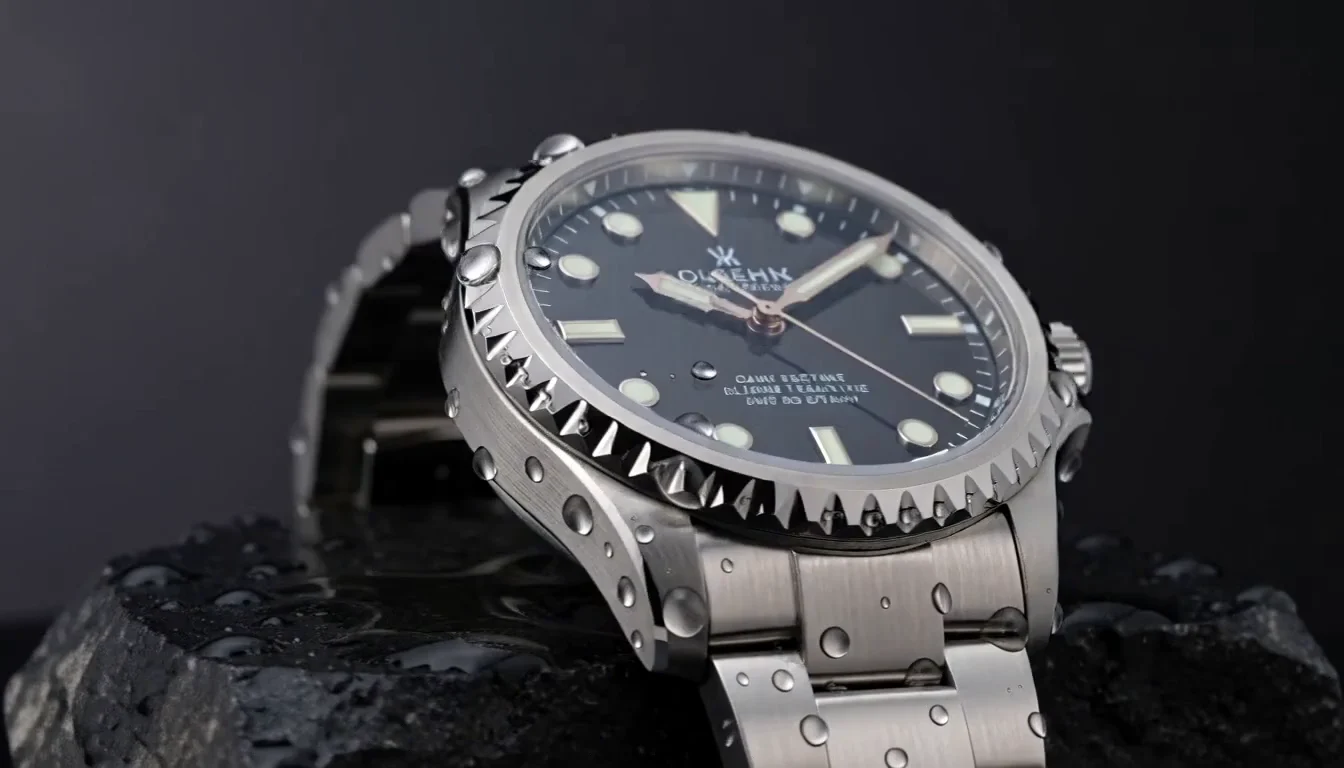
Why it works: One subject, one controlled movement, and one camera instruction keep the shot legible. The sound cues belong to visible objects, so they support the scene instead of competing with it.
RecreateStreet-food documentary
Text to Video · 16:9 · 8 seconds · 768P
Prompt
integrated_multimodal_description: [Shot 1] Live-action handheld documentary, one continuous eight-second shot at a rainy night-market food stall. Warm stall light contrasts with the blue wet street behind a cook and a waiting customer. For the first three seconds, frame the cook's hands folding a scallion pancake on a steel griddle while oil sizzles and a spatula taps the steel. From three to six seconds the camera tilts up slowly with small amplitude to the cook's focused expression as steam catches the light. In the final two seconds, rack focus to the customer waiting beside the counter without changing location. Keep the griddle, cook, and customer spatially connected in the wide composition. overall_soundscape: Continuous oil sizzling, individual spatula taps, gentle rain and indistinct market chatter without intelligible dialogue. non_diegetic_music: N/A
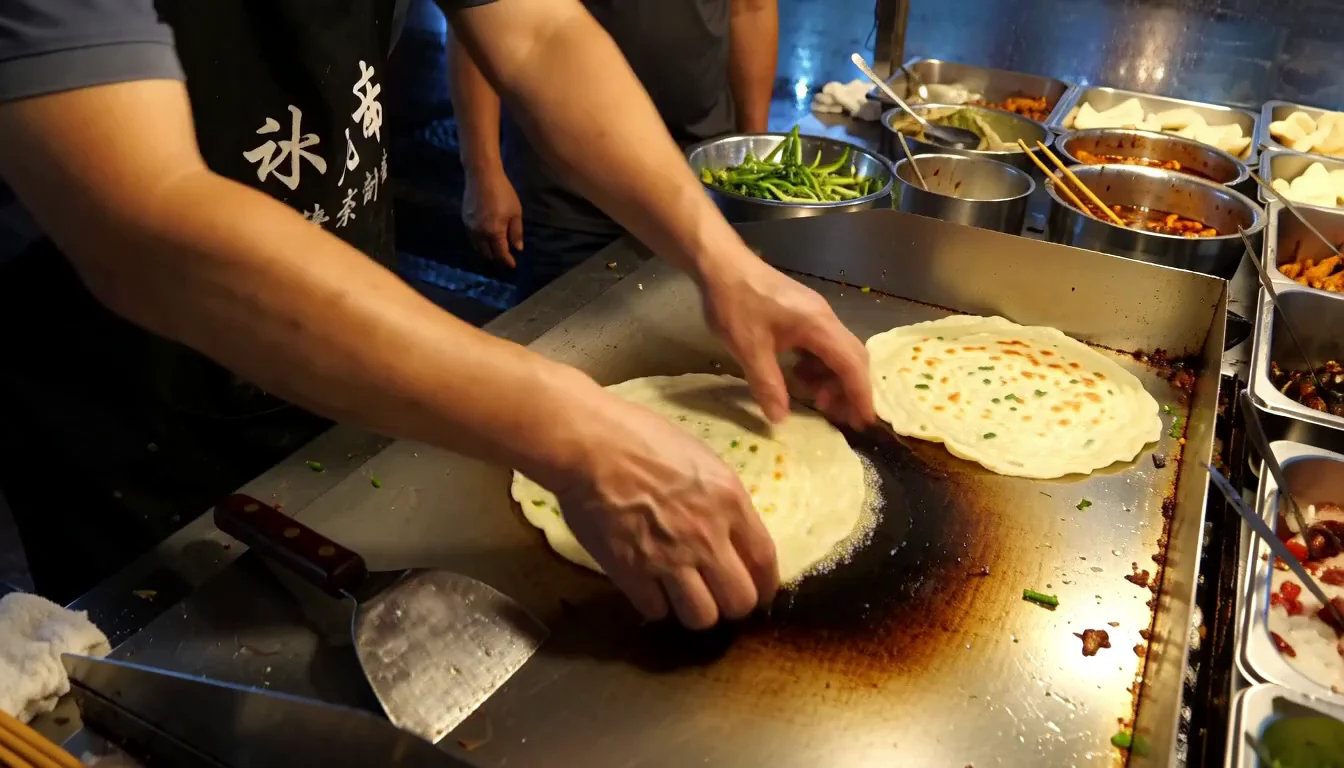
Why it works: The prompt gives the camera a three-beat route without inventing multiple locations. The 16:9 frame keeps the cook, griddle, customer, and rainy market context readable together.
RecreateSingle-action character shot
Text to Video · 16:9 · 5s supplied clip · 1080p source
Prompt
integrated_multimodal_description: [Shot 1] Live-action cinematic, a medium-wide composition frames a weathered astronaut kneeling beside a small red flower in pale lunar dust. Hard sunlight casts long black shadows; restrained colors keep the red petals distinct. In one uninterrupted eight-second shot, the camera pushes in with very small amplitude at slow speed. During the first four seconds she slowly removes one glove. Over the next three seconds her bare hand approaches the petals and stops just before contact. Hold that unfinished reach for the last second. Preserve the astronaut's face, suit, flower, and hand anatomy throughout. Breathing and faint radio hiss are heard from the suit. overall_soundscape: Close measured suit breathing, a small fabric rustle during glove removal, and faint radio hiss. No speech or outdoor wind. non_diegetic_music: N/A
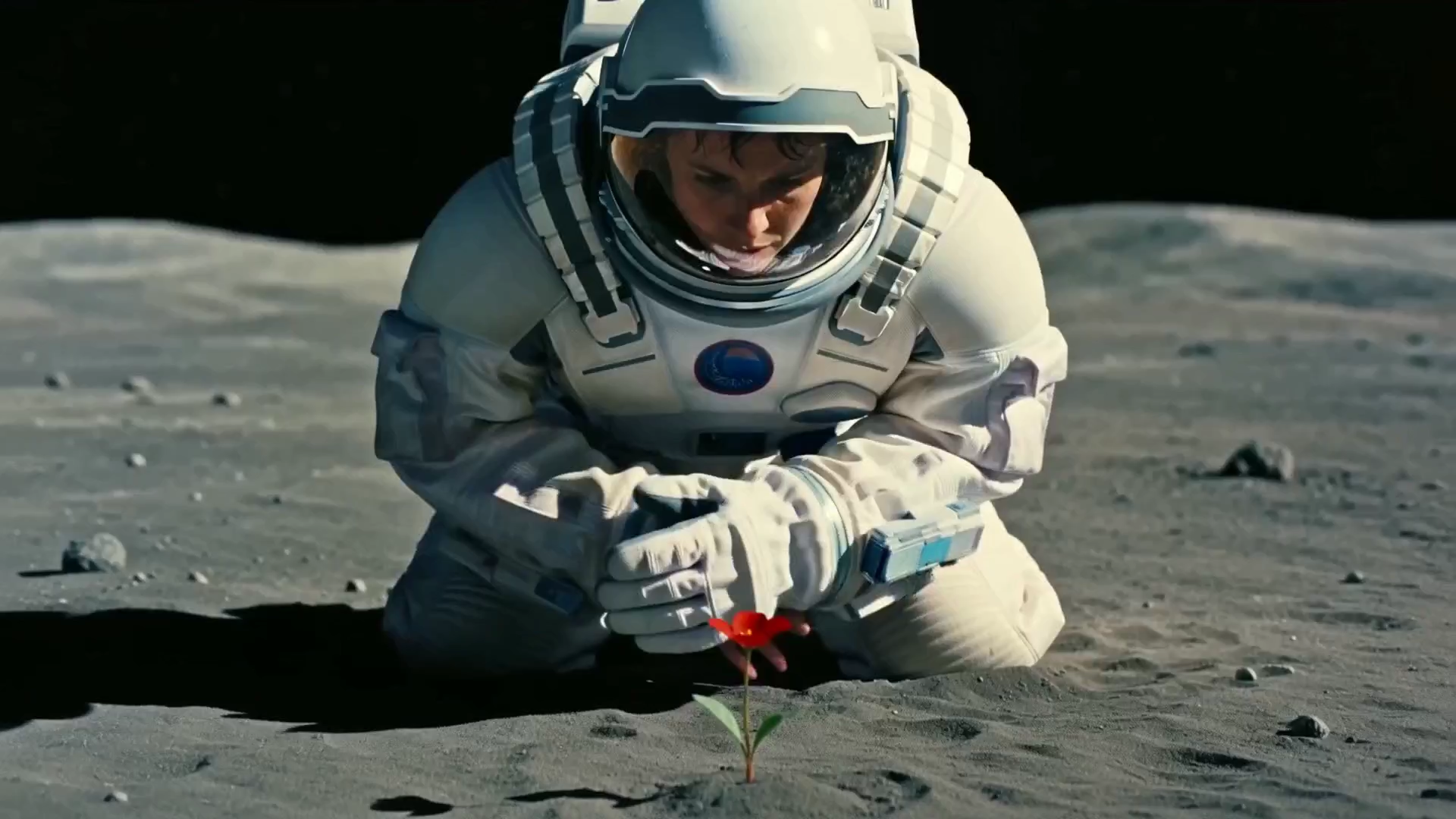
Why it works: The action has a clear endpoint. “Stops just before touching” gives the clip a readable finish rather than asking the model to improvise an ending.
RecreateArchitectural atmosphere
Text to Video · 16:9 · 8 seconds · 768P
Prompt
integrated_multimodal_description: [Shot 1] Live-action architectural cinematography, a symmetrical wide composition shows an empty brutalist library at dawn. Monumental concrete columns recede into thin fog, with a single amber sunbeam across a gray floor. During one continuous eight-second shot the camera dollies forward at slow walking speed beneath the central arch, maintaining level verticals. Loose paper near an open doorway lifts slightly and settles as fog drifts through the beam. The light shifts subtly over the floor without a time-lapse. Keep the column spacing, arch shape, and floor geometry stable. Paper rustles over distant wind and low room tone. overall_soundscape: Distant wind through the doorway, a brief dry paper rustle, and quiet reverberant room tone. No voices. non_diegetic_music: N/A
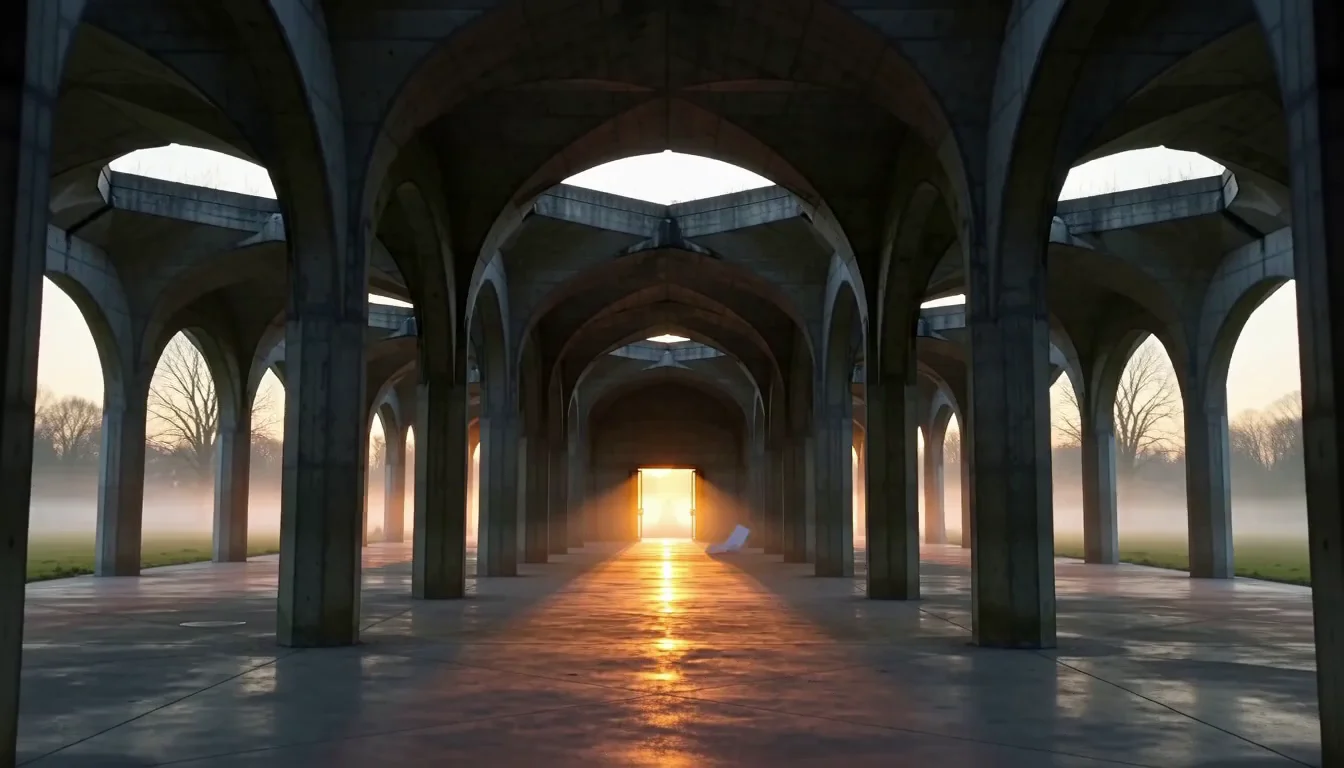
Why it works: Environmental motion makes a mostly static scene feel alive. The wide 16:9 composition is established before the centered camera move.
RecreateTurn a concept into a shot
Suppose the concept is “a futuristic train station.” That names a setting, not a video. Choose a subject, change, and viewpoint: “A lone commuter steps from a silent magnetic train as hundreds of paper tickets lift from the floor in its wake. Start in a low wide shot beside the platform edge, then track backward in front of the commuter. Cold white ceiling panels, cobalt signage, polished black floor. Audio: soft train brakes, rushing paper, distant announcements.”
The rewritten version gives the station scale through a person, creates movement through the tickets, and keeps the camera on one path. It also avoids asking for an entire story in ten seconds.
Write timing as beats, not edits
For a single continuous shot, time can be expressed with plain transitions: “At first,” “as the door opens,” “then,” and “finally.” Use timestamps only when exact staging truly matters, and keep enough time for each beat to be visible. If a six-second prompt contains an establishing shot, three actions, two camera moves, and an ending reveal, compression—not missing adjectives—is the problem.
Apply the Formula to Image-to-Video
In image mode, the upload already provides identity, wardrobe, composition, color, and spatial relationships. The best prompt usually describes the change from that first frame. Tell H3 Max what moves, what stays stable, how the camera behaves, and how the shot ends.
This guide teaches the method and keeps two focused image examples beside the controls they demonstrate. For a larger swipe file organized around motion patterns and failure fixes, use the 15 H3 Max image-to-video prompts.
Animate a portrait
Image to Video · 16:9 · 5 seconds · 768P
Prompt
She takes one calm breath, turns her eyes toward the window, and gives a barely visible smile. The camera remains locked. Loose hair moves slightly in the breeze and the curtain shifts in the background. Preserve her facial features, clothing, and the original soft side lighting. Audio: quiet room tone and a distant city hum, no music.
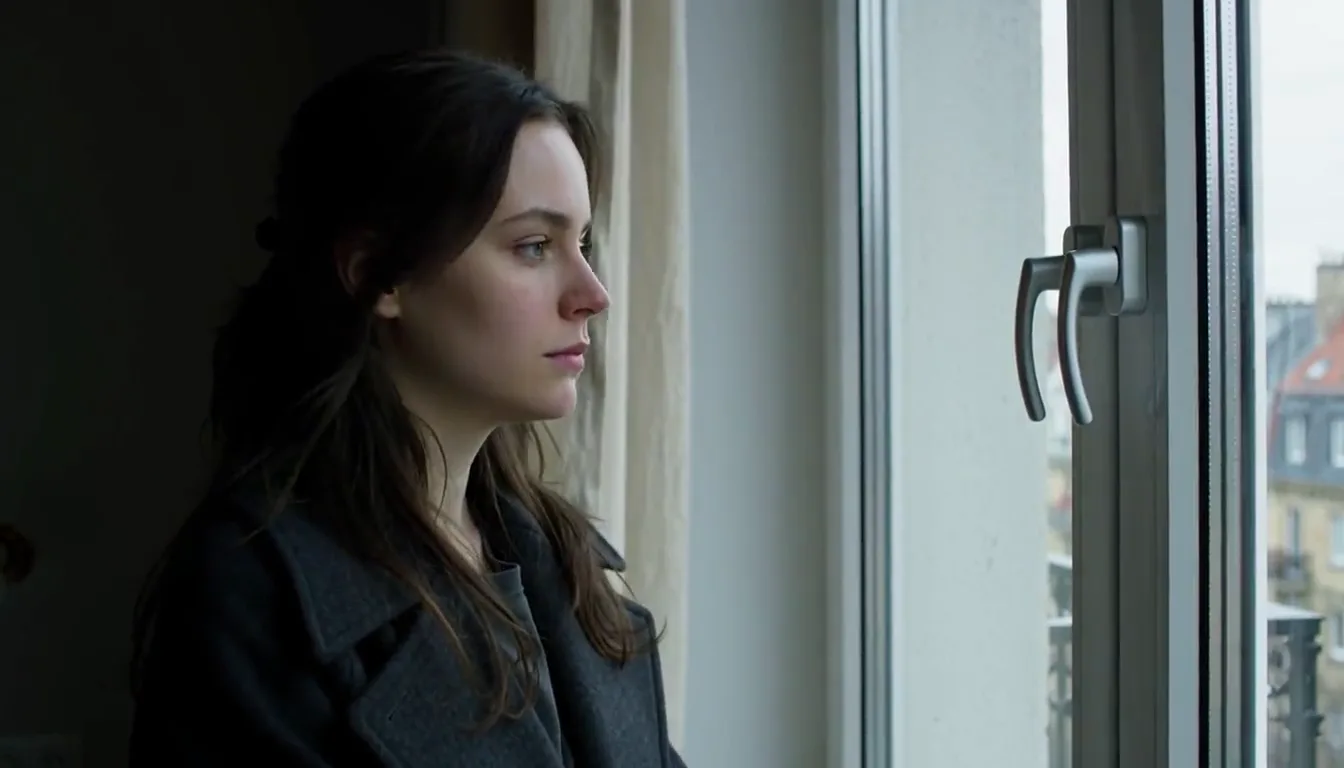
Video result
Why it works: The uploaded image already defines the person and composition. The prompt spends its words on restrained motion, preservation, and sound instead of redescribing the portrait.
RecreateUpload your own starting image in the generator before creating the video.
Animate a landscape
Image to Video · 16:9 · 8 seconds · 768P
Prompt
Cloud shadows travel slowly from left to right across the valley. Pine branches sway in two gentle gusts and a thin veil of mist lifts from the river. Add a slow forward camera drift with no rotation. Preserve the mountain silhouette, natural colors, and foreground rocks. Audio: wind through trees and distant running water, no music.
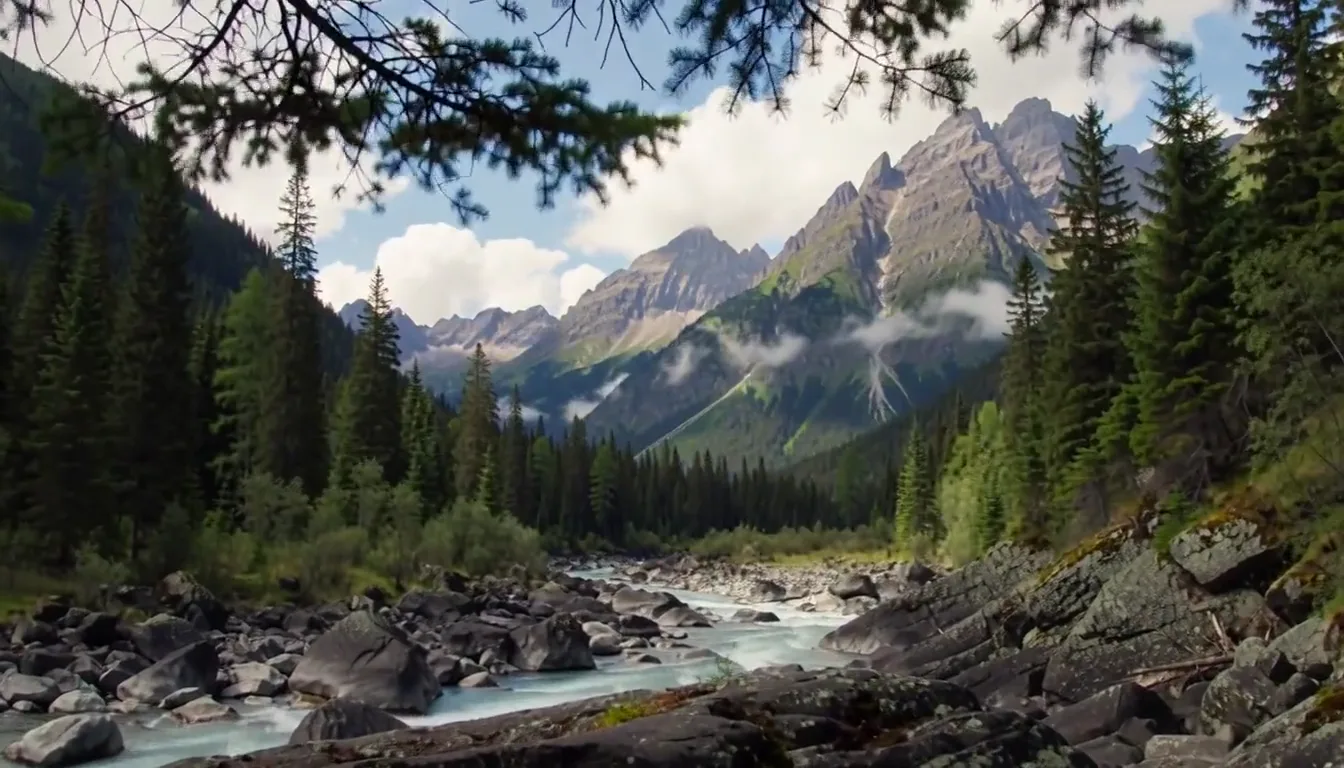
Video result
Why it works: The directions separate subject motion, environmental motion, and camera motion. Preservation language protects the geometry already present in the source image.
RecreateUpload your own starting image in the generator before creating the video.
Use the image as a contract
If a portrait already shows a blue coat, a brick wall, and window light, repeating all three consumes attention without adding motion. Use preservation instructions only for features that matter: “preserve facial features and coat design,” “keep the logo readable,” or “maintain the original camera angle.” Then spend the rest of the prompt on breathing, gaze, fabric, weather, background activity, and camera drift.
Optional end frames need a transition
When the interface offers an end image, do not merely describe both pictures. Describe how the first state becomes the last: the direction of travel, the object that changes, and the camera path connecting them. Large identity or geometry changes are harder than a continuous action between compatible compositions.
The output follows the uploaded image’s shape in Image to Video. Crop the source to the intended orientation before upload; the text-mode aspect-ratio buttons do not override an image’s framing.
Reference-to-Video prompting
Reference mode starts with uploaded images, videos, or audio rather than a blank prompt. Add the materials first, type @ in the prompt editor to select a named reference such as Image 1 or Video 1, then describe the role that reference should play, the action, camera behavior, and ending state. Mention only references that affect the shot so the instruction stays direct.
Camera and motion vocabulary that stays clear
Camera words work best when they describe a physical relationship. “Cinematic” is a judgment; “a slow shoulder-height tracking shot two meters behind the runner” is an instruction. Pick a move that reveals information or follows action.
Locked shot
The camera stays fixed while action unfolds inside the frame. Useful for products, subtle portraits, and controlled transformations.
Push-in / pull-back
Moves closer to emphasize a subject or farther away to reveal context. State what should be revealed at the end.
Pan / tilt
Rotates horizontally or vertically from a fixed position. Name the object the camera follows or discovers.
Dolly / tracking
Moves through space beside, ahead of, or behind the subject. Give direction and relative speed.
Orbit
Circles a stable subject. A partial, slow orbit is easier to read than several complete rotations.
Rack focus
Shifts attention between foreground and background. Identify both focus targets and their order.
Separate subject motion from camera motion
“The dancer spins as the camera orbits counterclockwise” contains two rotations that may fight for attention. If both are essential, slow one of them and state their relationship. Otherwise let the subject move against a locked camera or track in a simple direction.
Control motion intensity
Modifiers such as barely, gentle, steady, brisk, sudden, and accelerating change the energy of a shot. Use them consistently. “A calm scene with a rapid whip pan and violent handheld shake” sends mixed signals unless the contrast is the point of the story.
How to write audio into the prompt
To make audio direction easier to evaluate, start with the sound caused by the visible action, then add one layer of ambience. Music and dialogue are optional. Silence can also be directed: “no music,” “no speech,” or “only room tone and the fluorescent buzz.”
- Effects: footsteps on tile, a latch click, fabric movement, engine idle, glass set on wood.
- Ambience: distant traffic, coastal wind, a crowded room, insects at dusk, a quiet studio.
- Dialogue: identify the speaker and keep the line short. Avoid several people speaking over one another in a brief clip.
- Music: specify presence, absence, and broad character. Do not rely on a named copyrighted song as the whole direction.
Audio pattern: Audio: [synchronized foreground effect], [background ambience], [short dialogue if needed], [music or no music].
When sound is not important, a restrained instruction is better than filling the prompt with audio adjectives. The model still has to balance the soundtrack with visual generation.
Settings that change how a prompt behaves
Duration: 5 to 15 seconds
Duration determines how much action has room to unfold. Use five or six seconds for one gesture, a product movement, or a compact reveal. Eight to ten seconds can support two or three connected beats. Twelve to fifteen seconds gives a tracking shot or environmental change more breathing room, but it also creates more time for composition to drift.
Resolution: 480P, 768P, or 1080P
If a lower-resolution draft fits your review needs, test the core idea at 480P and move to 768P when more detail is required. Choose 1080P when the delivery needs that output size. Standard H3 Max uses one credit per second at 480P, two at 768P, and eight at 1080P. Resolution does not repair an overloaded prompt.
Aspect ratio in Text to Video
Choose 16:9 for general landscape video, 9:16 for vertical social framing, 1:1 for square placements, 4:3 or 3:4 for more compact compositions, and 21:9 for an ultrawide frame. Mention compositional intent that suits the ratio—full-body vertical action, centered square product, or panoramic environment—rather than expecting a late crop to preserve every element.
Prompt expansion
Disabled keeps authorship closest to your wording and is useful for tightly directed shots. Balanced is a practical default when your structure is clear but the scene could use modest interpretation. Quality can elaborate a short seed, but added detail may compete with exact composition or identity. If a result wanders, simplify the prompt and reduce expansion before adding more constraints.
For the exact pixel dimensions, frame rate, aspect-ratio behavior, and credit math, use the H3 Max resolution guide. Keeping those specifications on one page prevents this prompt tutorial from becoming a duplicate model overview.
Why H3 Max prompts fail—and what to change
Use the table as a controlled revision checklist. It separates wording changes from interface settings so the next generation tests one clear hypothesis.
| Symptom | Possible cause | Prompt correction | Settings correction | Success criterion |
|---|---|---|---|---|
| The subject changes identity | The prompt gives several competing identity cues or asks one short clip to show large appearance changes. | Keep one or two defining features, remove conflicting character details, and state what must remain consistent. | Use Image to Video when a starting identity matters. Reduce prompt expansion if it introduces unwanted detail. | The same defining face, clothing, or product features remain recognizable from the first frame through the final action. |
| Motion looks chaotic | Several subject actions, camera moves, and environmental effects compete in the same duration. | Keep one motion hierarchy: subject first, camera second, environment third. Remove secondary actions. | Increase duration only when the remaining action needs more time; do not use a longer clip to preserve an overloaded sequence. | The primary action reads clearly and the camera supports it without introducing a second competing movement. |
| Nothing important happens | The prompt describes mood and appearance without a visible action, cause, or endpoint. | Add an active verb, the trigger for the action, and the state the shot should reach at the end. | Choose a duration that gives the stated action enough time to complete; start with one compact beat for a short draft. | A reviewer can identify the requested action and its endpoint without relying on the prompt text. |
| The camera does the wrong thing | The camera direction is broad, contradictory, or mixed with several moves. | State the starting frame, one primary camera move, its direction, and the subject it follows or reveals. | Keep prompt expansion Disabled or Balanced when exact framing matters, then test the same duration and ratio again. | The clip begins in the requested framing and performs the named move in the intended direction. |
| The image-to-video result drifts | The prompt restates the whole image, adds incompatible scene details, or requests a large identity or geometry change. | Describe the change from the uploaded frame, add a short preservation clause, and remove details already visible in the image. | Use the intended First Frame, verify its preview, and lower prompt expansion before changing resolution. | The opening matches the uploaded composition and the protected subject features remain stable during the requested motion. |
| Dialogue is unclear | Several speakers, long lines, or loud ambience compete inside a short clip. | Name one visible speaker, use one short line, and specify a restrained background sound bed. | Give the spoken beat enough duration and compare alternate generations without changing the line and camera together. | The intended speaker is identifiable and the short line can be heard without the ambience masking it. |
Revise one variable at a time
If you change the action, camera, duration, ratio, and expansion together, the next result cannot tell you which change helped. Keep the seed idea stable and revise the highest-priority failure first. Prompting becomes a repeatable craft when each generation tests a hypothesis.
A repeatable H3 Max prompting workflow
- Write the outcome in one sentence. What should the viewer understand or feel when the clip ends?
- Choose the mode. Use Text to Video for invention; use Image to Video when a source frame must anchor the scene.
- Draft with the five-part formula. Subject, action, camera, look, audio. Cut repeated adjectives, but keep timing, preservation, and exclusion constraints that make the intended result testable.
- Match action to time. Count the visible beats and give each enough seconds to read.
- Choose a review setting. If 480P is sufficient for judging motion and composition, a 5-second draft uses 5 credits. Select 768P when the review needs more detail, or 1080P when the delivery requires that output size.
- Diagnose the biggest miss. Identity, action, camera, environment, or sound—not “quality” as a vague category.
- Revise one layer. Shorten an action, lock the camera, protect a feature, or adjust expansion. Keep what already works.
- Generate the delivery framing. Move to the required length, resolution, and delivery aspect ratio after the direction is stable.
Save successful prompts with their mode, duration, resolution, ratio, and expansion setting. The wording alone does not fully describe a result. A useful prompt library records the production choices that made the prompt work.
Ready to test the formula?
Start with one subject, one action, and one camera move.
Open the homepage generator, enter your own prompt, then choose the input mode, duration, resolution, and prompt expansion setting that fit the shot.
Open the H3 Max GeneratorH3 Max prompt guide FAQ
What is the best H3 Max prompt format?
Use five parts in a natural paragraph: subject and scene, visible action, camera behavior, look and lighting, then audio. Keep the action physically possible within your chosen 5–15 second duration. You do not need JSON or special tags in this generator.
How long should an H3 Max prompt be?
A useful starting range is roughly 45–90 words for one shot. Length is not a quality score. Add a detail only when it changes something visible or audible; remove adjectives that repeat the same idea.
Does H3 Max understand camera directions?
Yes, practical directions such as locked shot, pan, tilt, dolly, orbit, push-in, pull-back, tracking shot, and rack focus can make the intended framing clearer. One primary move per short clip is more reliable than a chain of conflicting moves.
How do I write an H3 Max image-to-video prompt?
Treat the image as the first frame. Describe what should move, how the camera should move, what must stay consistent, and what should be heard. Do not waste most of the prompt repeating details already visible in the image.
Should I use negative prompts?
This interface does not expose a separate negative-prompt field. Put one or two essential constraints in the main prompt, such as “locked camera,” “preserve facial features,” or “no music.” Avoid long lists of defects because they dilute the positive direction.
Why does my generated video ignore part of the prompt?
The usual causes are too many events, incompatible camera commands, ambiguous pronouns, or a duration too short for the requested sequence. Reduce the clip to one subject, one main action, one camera move, and one ending state, then test again.
Which prompt expansion setting should I choose?
Use Disabled when your prompt is already precise, Balanced when you want a little interpretation, and Quality when a short idea needs richer cinematic detail. If composition or identity drifts, step down to Balanced or Disabled.
Can I prompt H3 Max for dialogue and sound?
You can describe dialogue, ambience, effects, and whether music is present. Keep spoken lines short enough for the clip and identify the speaker clearly. Native audio is generated with the video; review the final clip for wording and timing before delivery.
Where this guide fits
This page focuses on prompt construction for the controls available here. The 15-prompt image-to-video library is the companion example collection rather than a second version of this tutorial. For the complete onsite sequence from input through download and retry states, follow How to Use MiniMax H3 Max. For a model-level explanation and trade-offs, read What Is H3 Max?. For output specifications, see H3 Max Resolution. To compare the hosted Max variant with the broader base model, use H3 Max vs MiniMax H3.
MiniMax’s official prompt-writing material uses structured multimodal descriptions for broader H3 workflows. This interface presents a simpler natural-language form for text and image generation, so the examples above deliberately stay inside the capabilities you can actually select and test on this site.